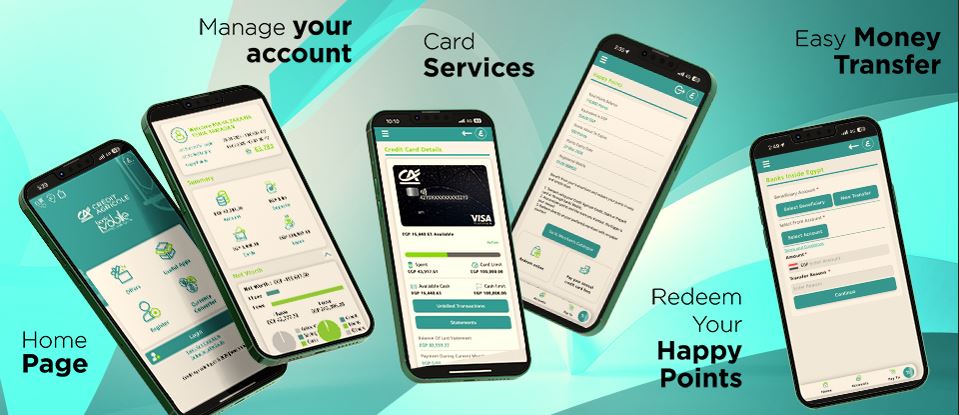


banki Mobile Download + Registration
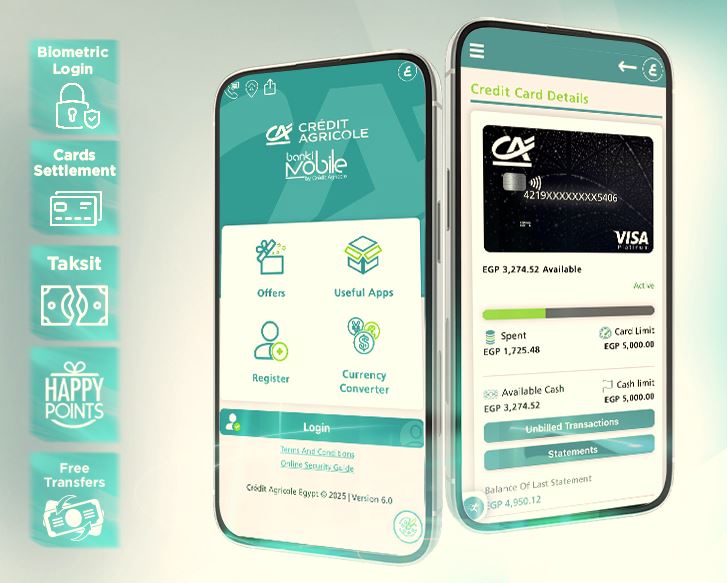
Welcome to Crédit Agricole, you’re ONE STEP away from banking on the go!
With banki Mobile app you will enjoy full access to your accounts and cards anytime, anywhere, just follow these simple steps:
Step 1: Getting Started
Download banki Mobile
- Click below to download (or go to Google play store or Apple store and search for banki Mobile, click on the search result labeled “banki Mobile published by Crédit Agricole Egypt”)


- Install the application
- After the download, allow the app to send you notifications (this will help you stay up to date with our latest news)
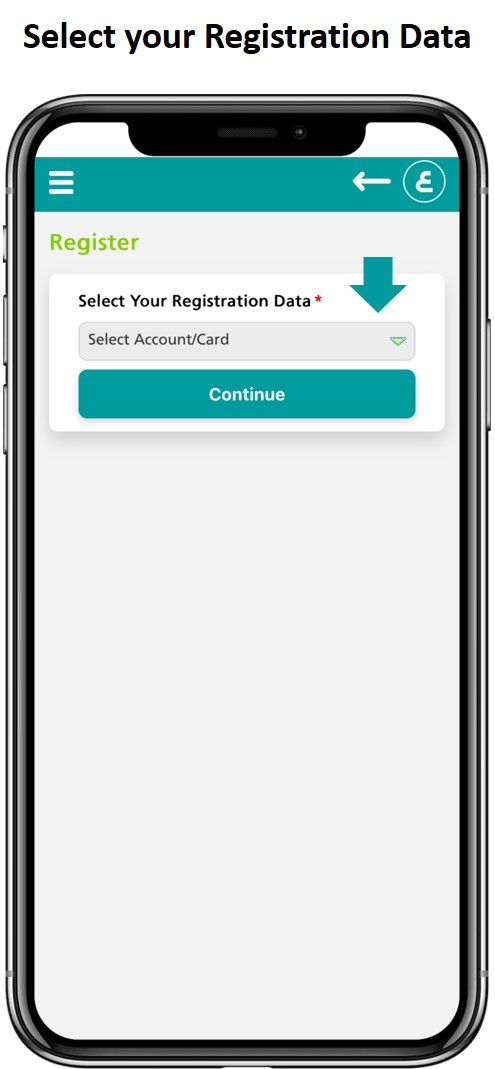
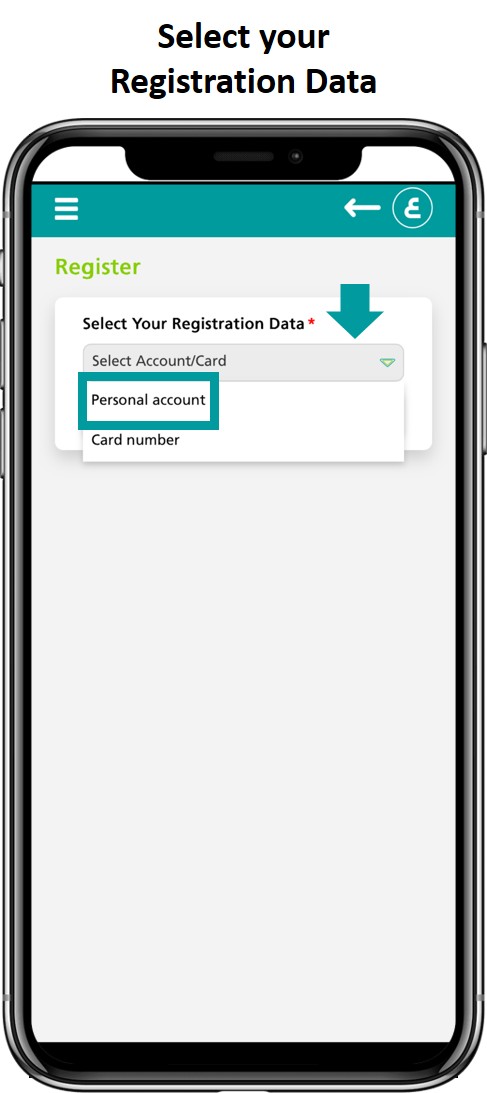
Register to banki Mobile
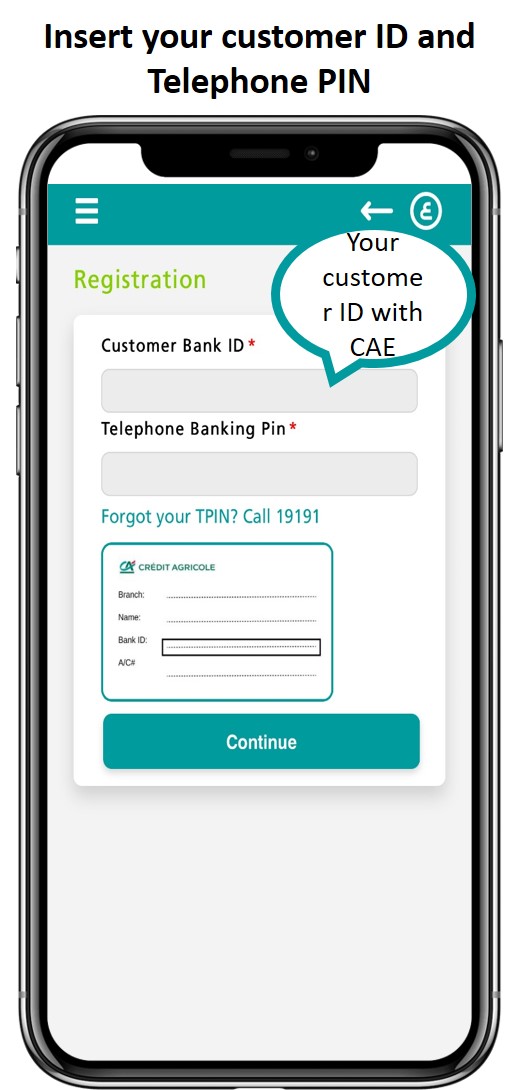
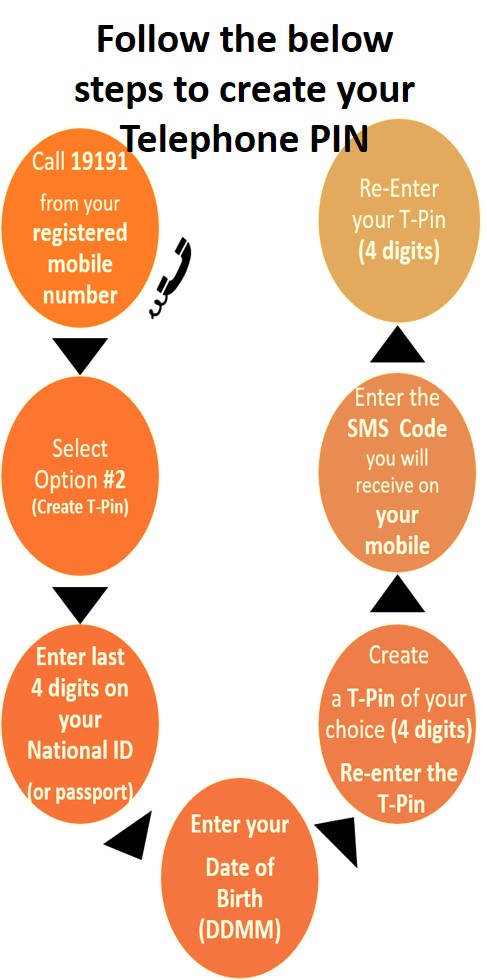
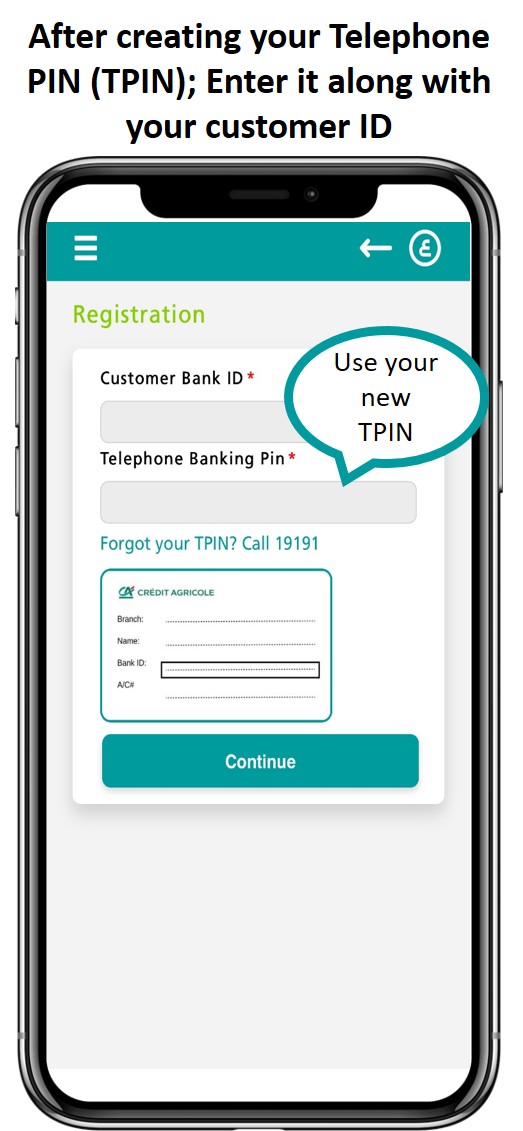
- Simply register to banki Mobile using your Customer ID + Telephone-PIN:
- your Customer ID is on your bank identification card (received when you opened your account)
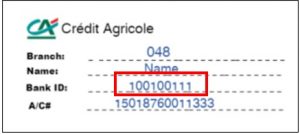
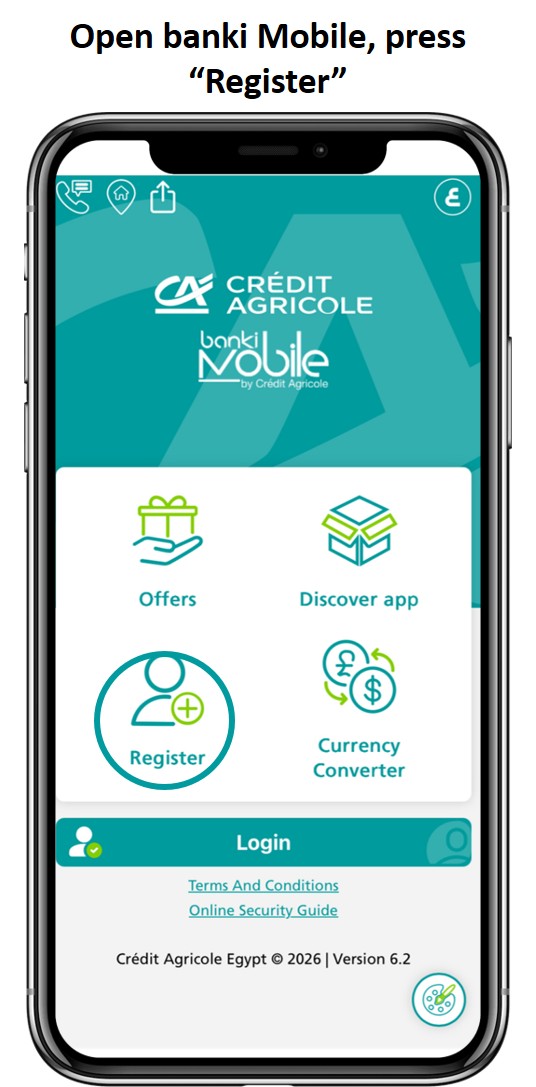
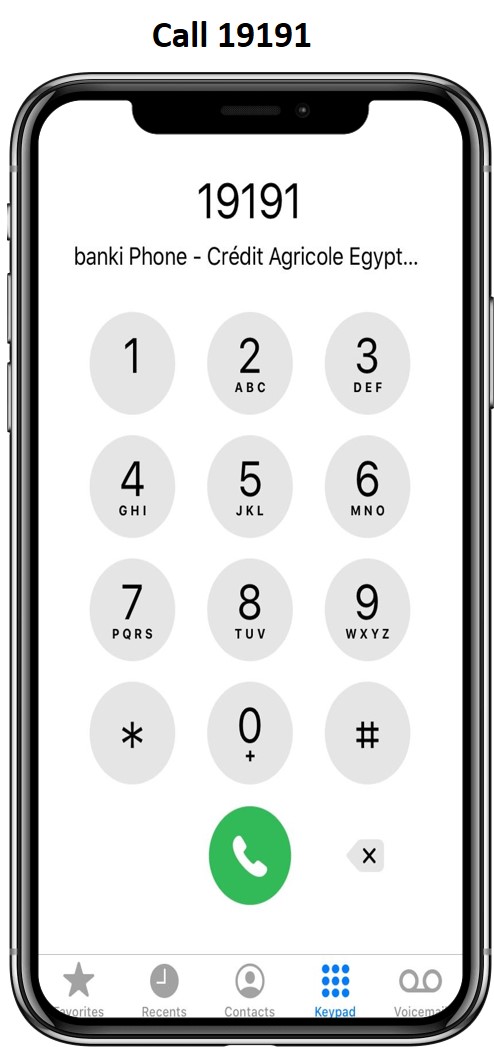
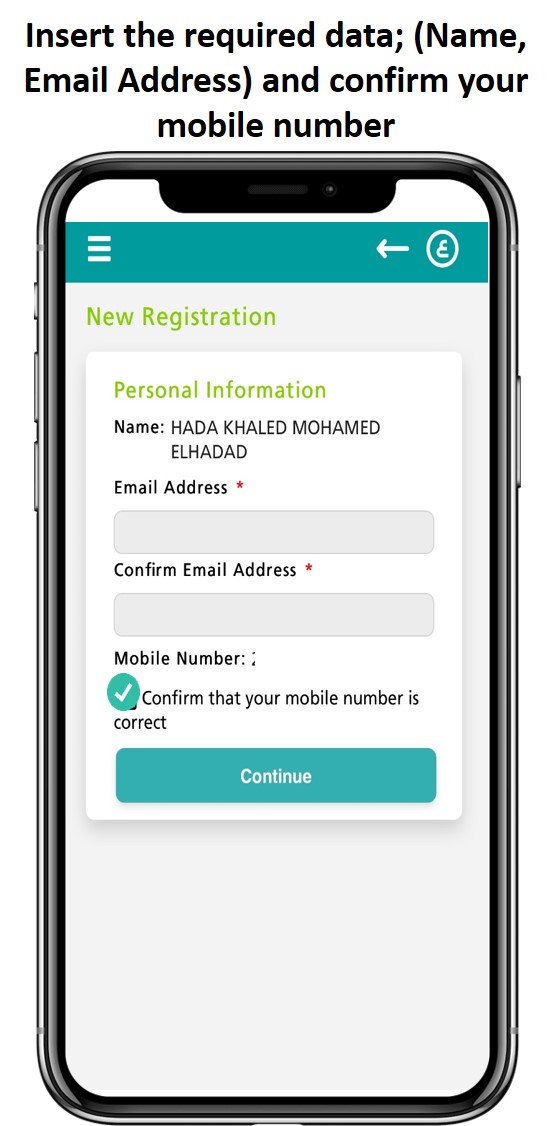
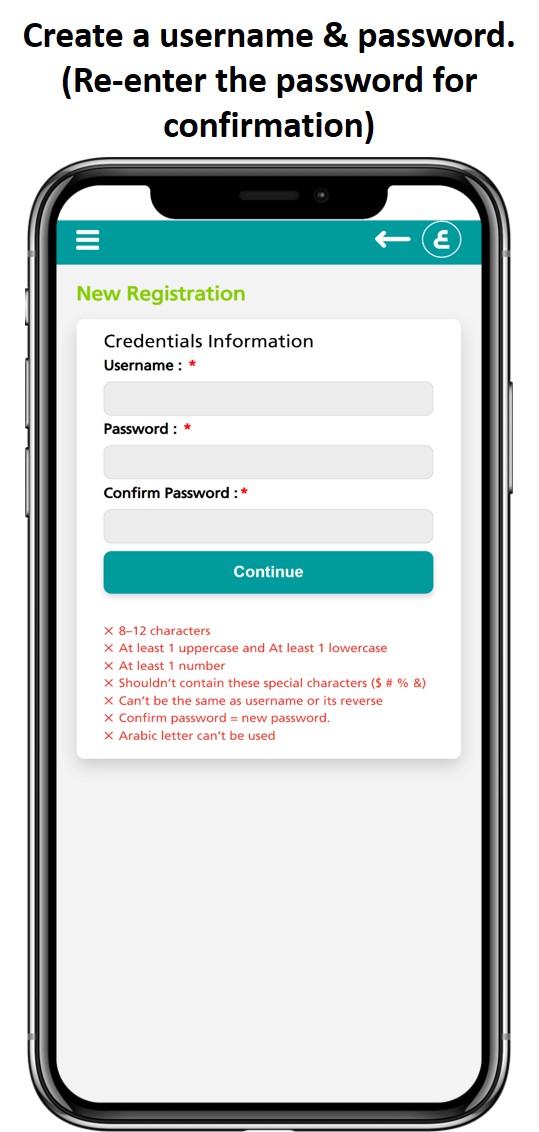
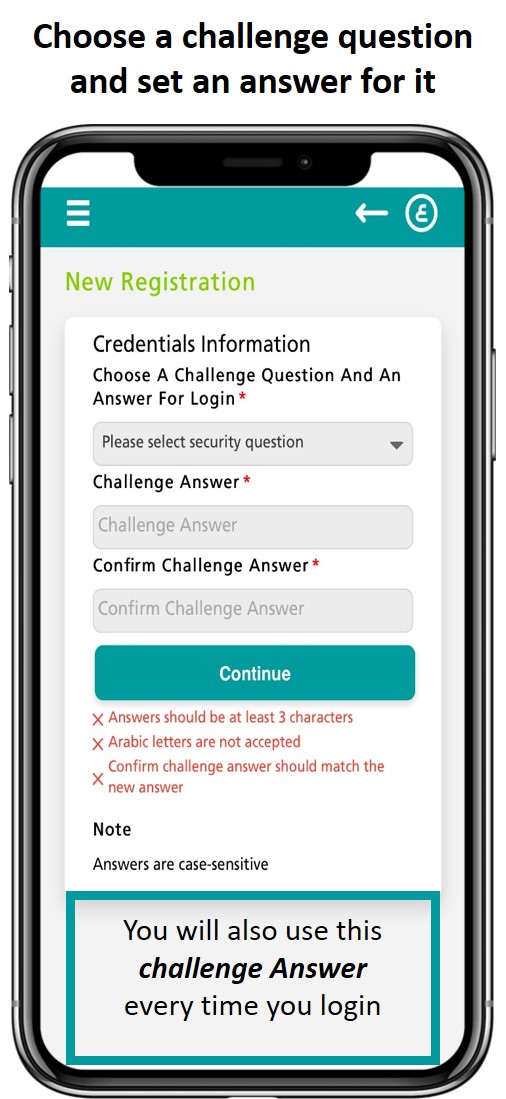
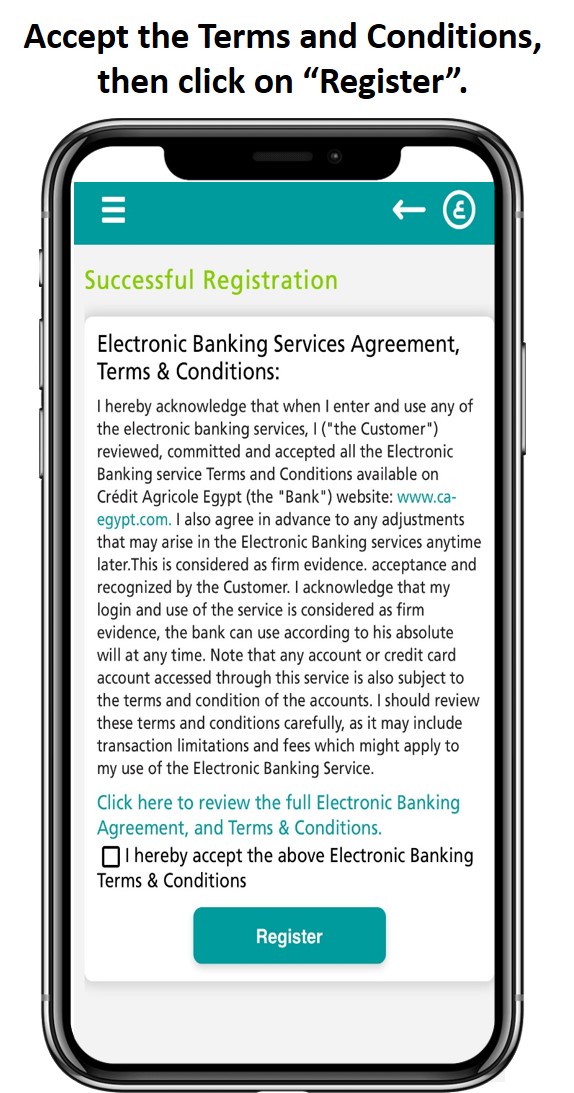
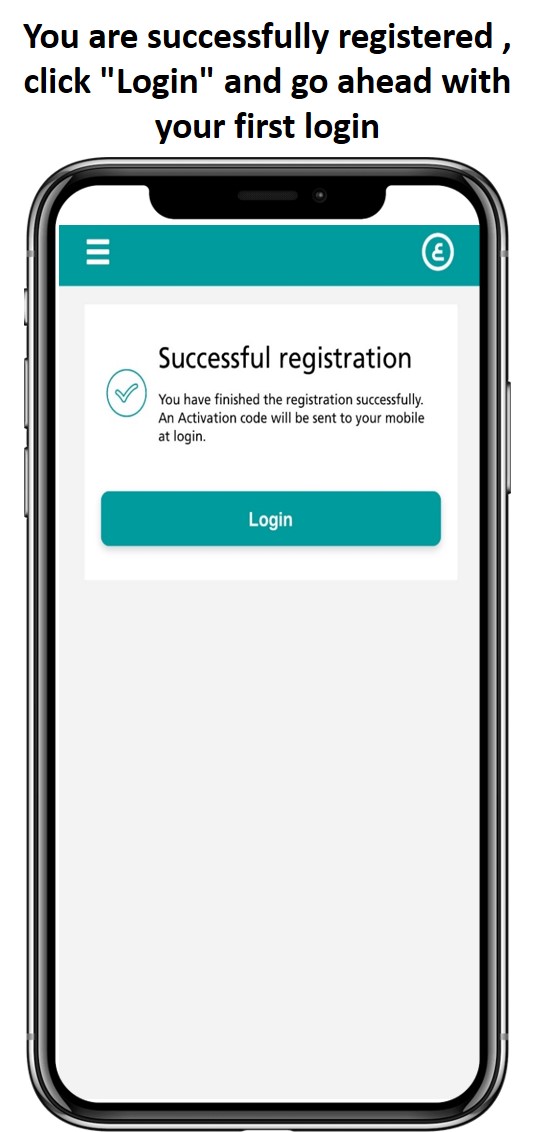
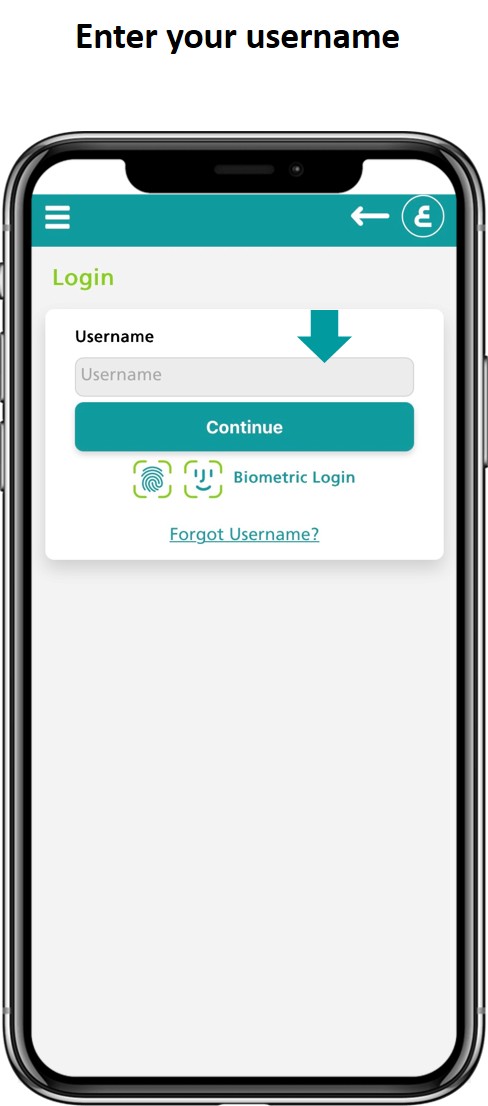
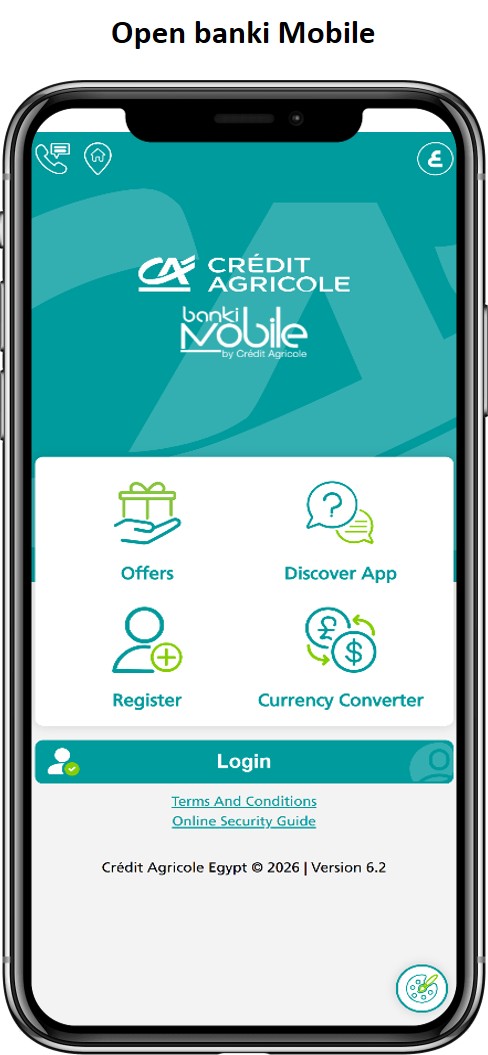
- Follow the steps below to know how to get your Telephone PIN and to complete the registration on banki Mobile:

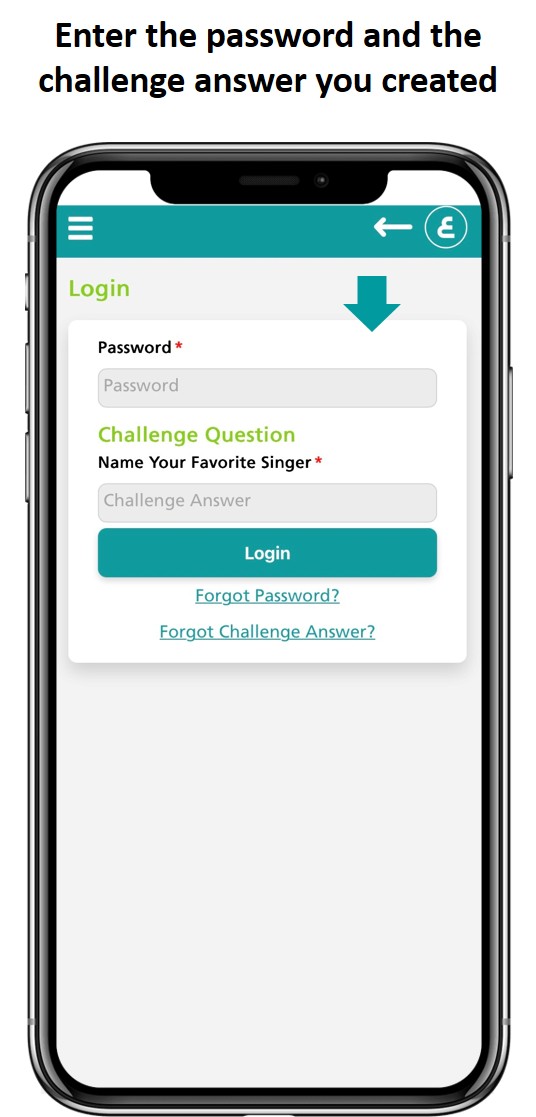
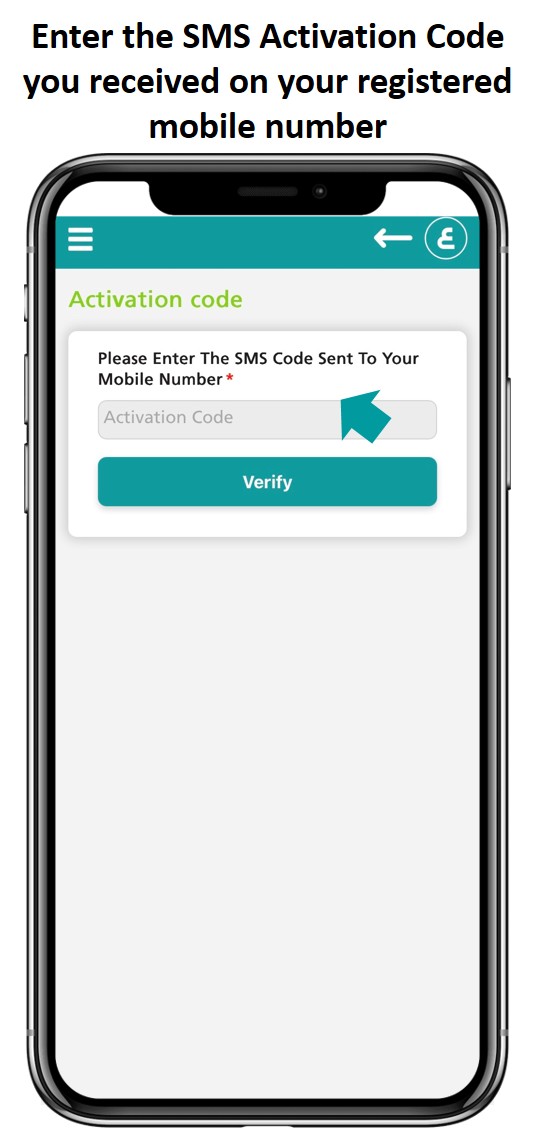
Step 2: Personalize
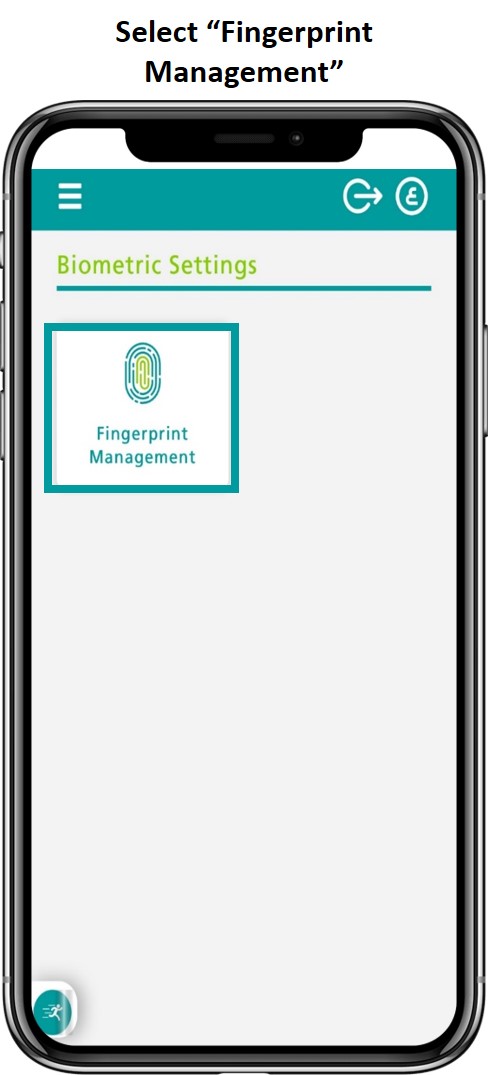
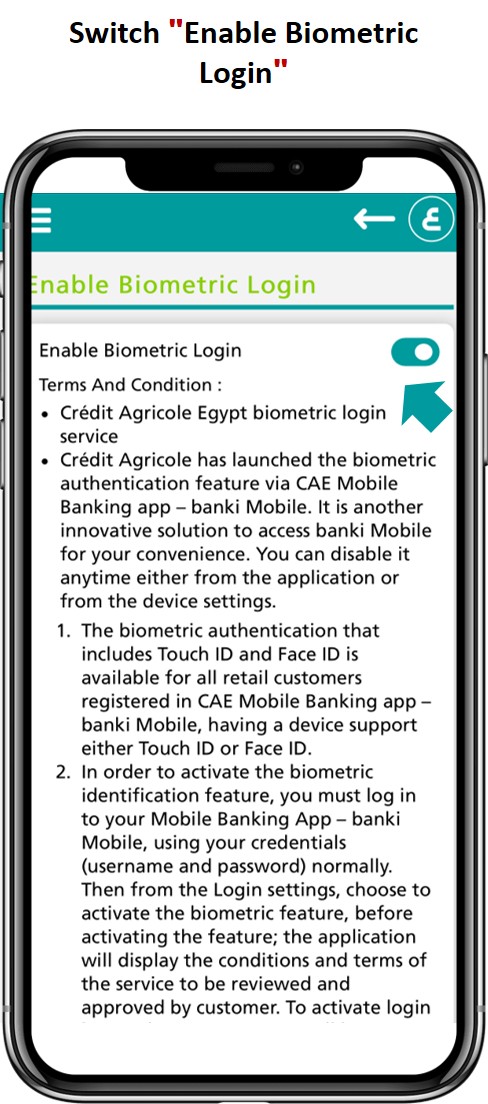
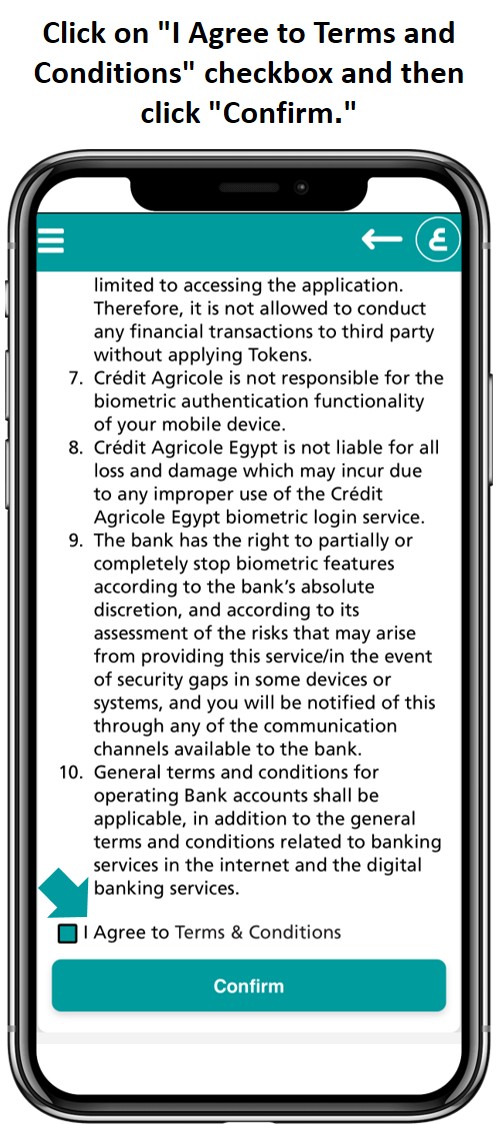
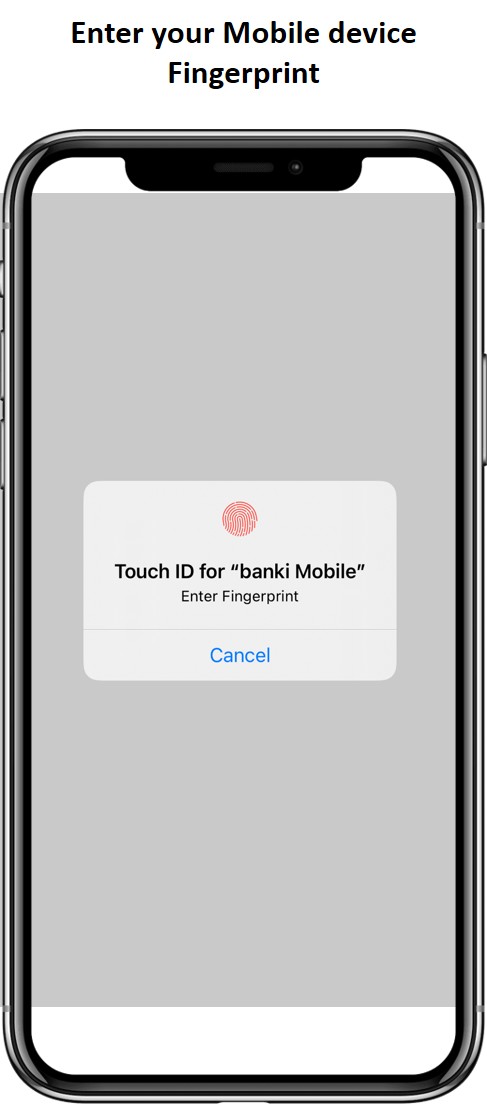
Activate your fingerprint or Face ID for fast and easy login on banki Mobile:
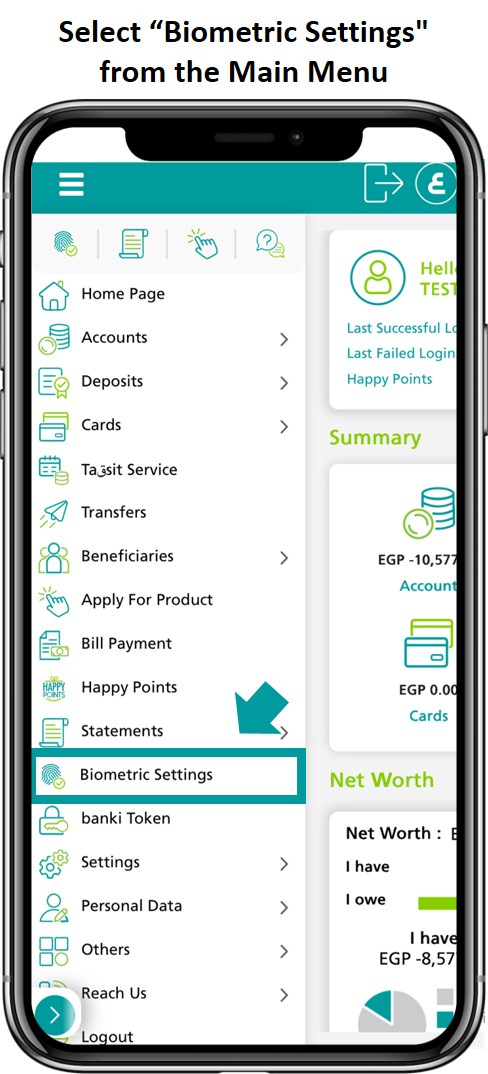
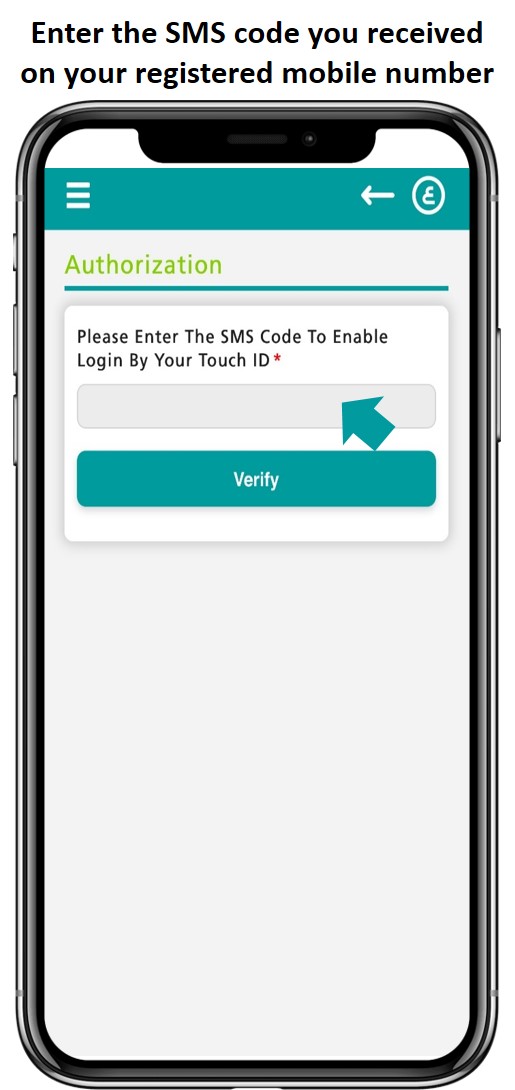
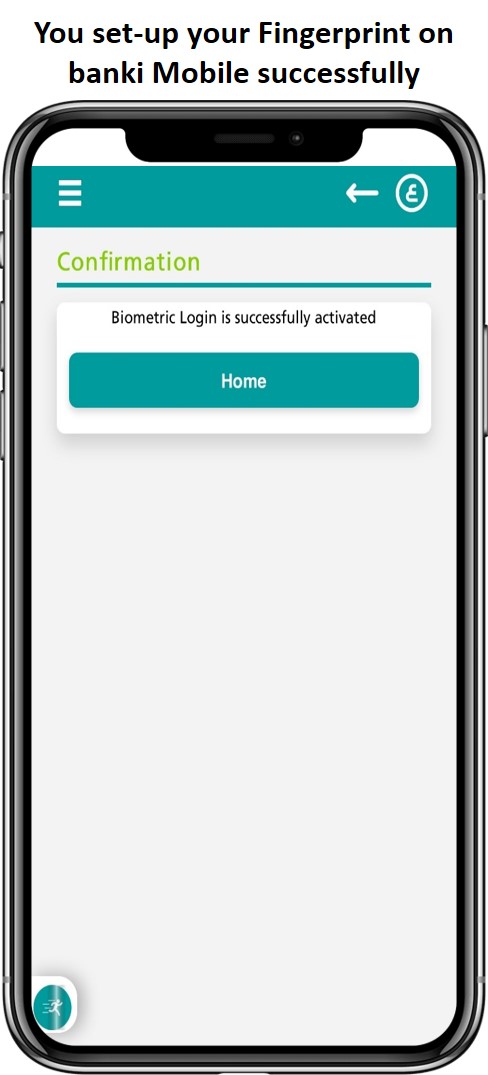
Note:
- Face ID feature is available for supported IOS devices
- To activate your Face ID, you need to set-up your token first.
Set-up your E-statements now (Avoid paper statement charges, and save the environment):
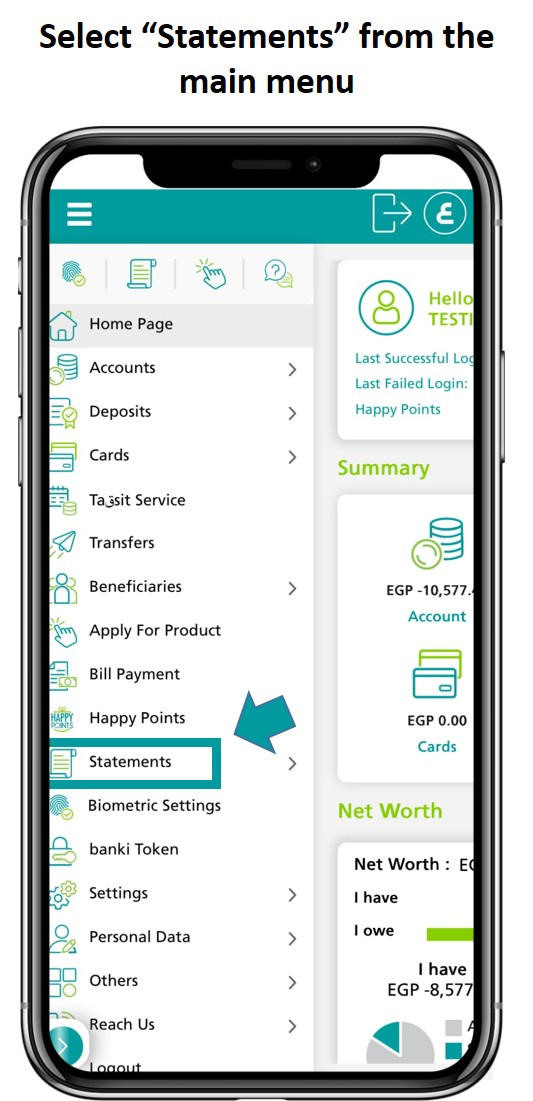
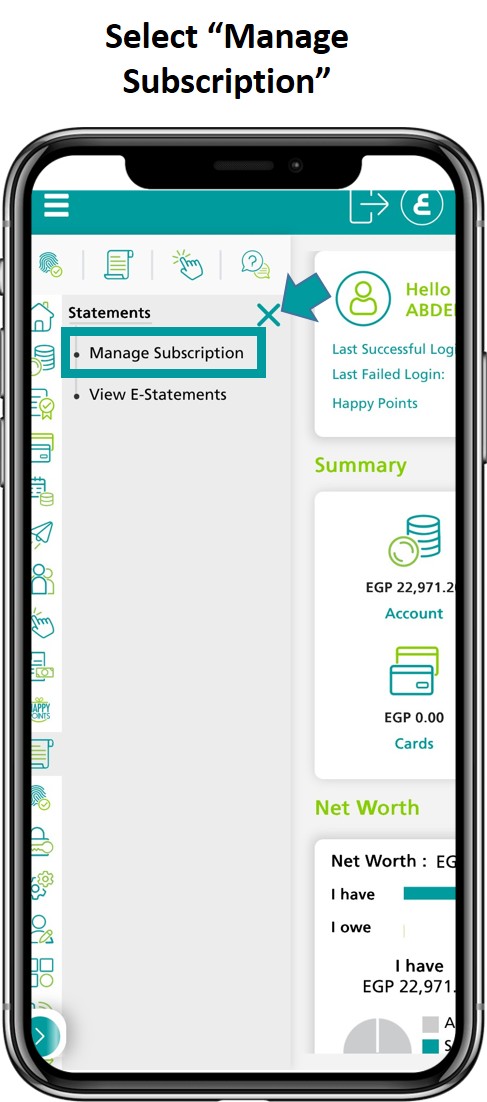
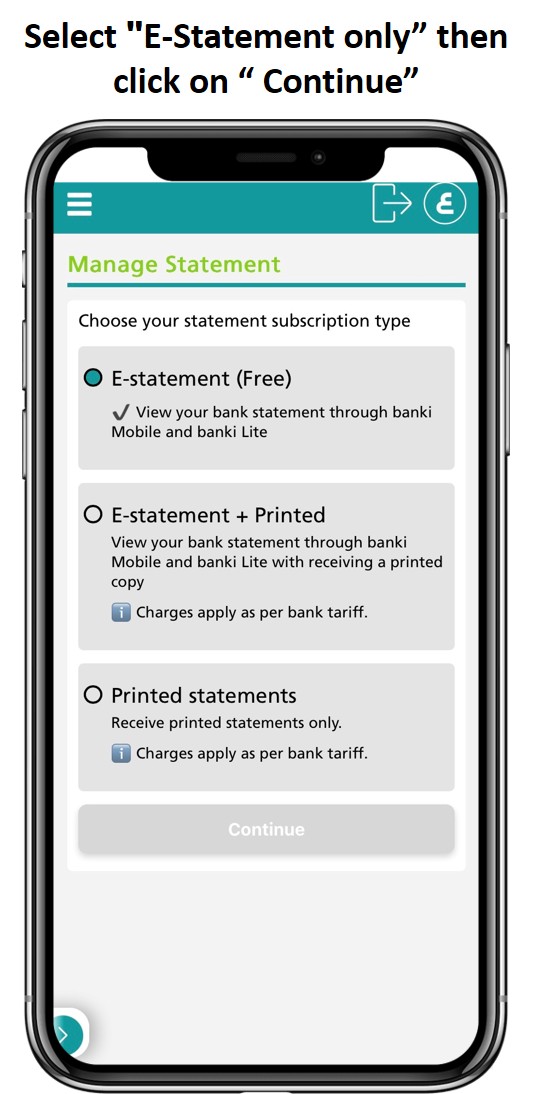
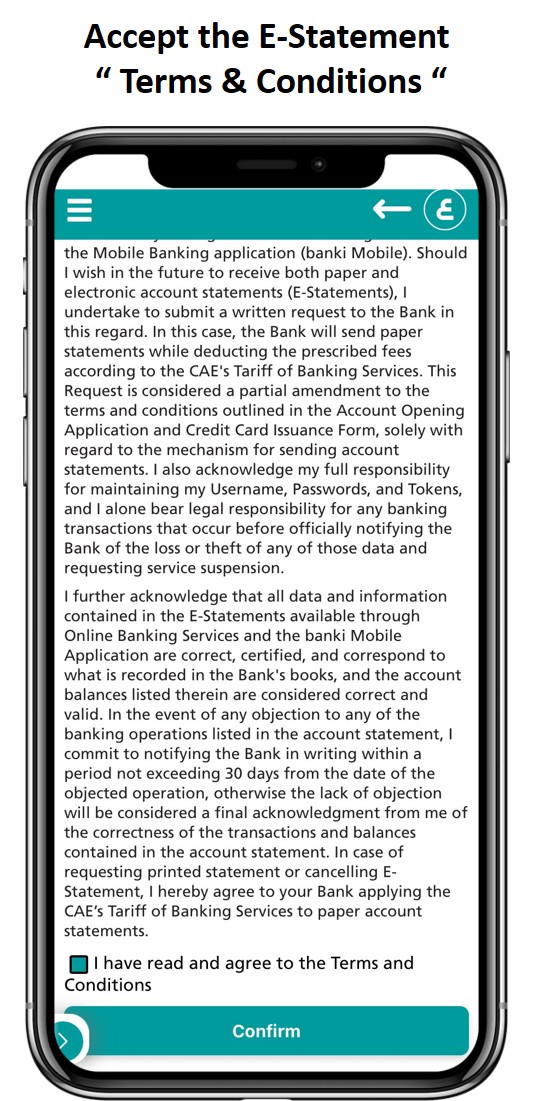
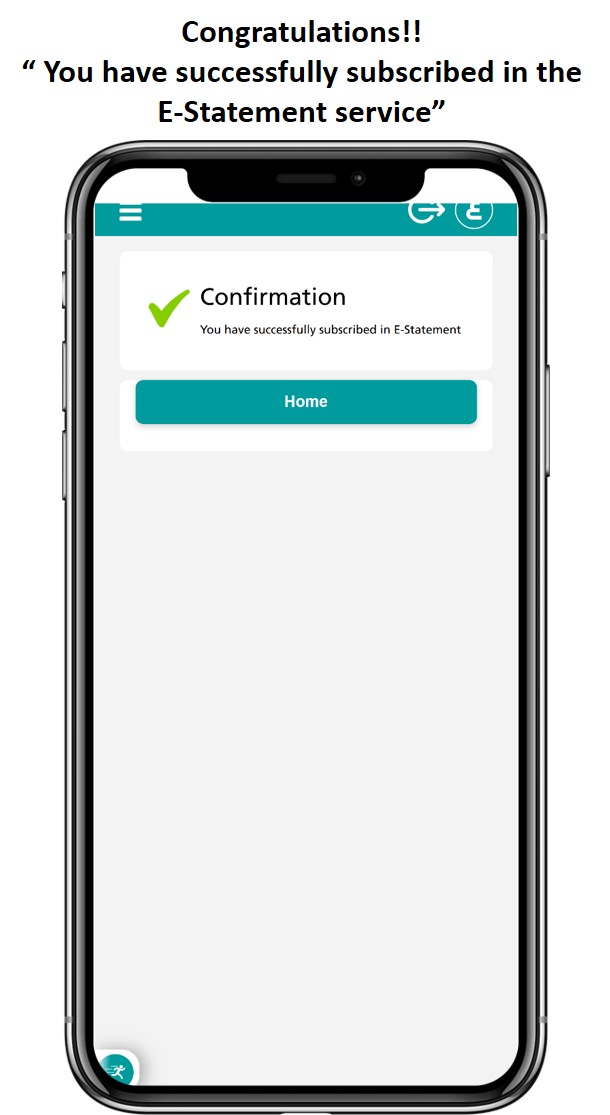
- Please note that you will be charged for printed statements in case chosen.
- To avoid charging fees for issuing printed statements, select the first option “E-statement only”
Step 3: Start Making Transfers & Payments:
Activate Your TOKEN now in a few simple steps, and start making payments and transfers using banki Mobile:
- Download the token application (Entrust Identity Guard Mobile) from

- Activate the token using banki Lite; click here
- If you need further assistance or guidance on how to use banki mobile, please visit our go-digital page or our video library “How to.. banki” on the website.
Congratulations, you have now full access to our exceptional digital solutions