
Easily follow these simple steps click here
- Now you can change your registered mobile number with no need to visit the branch.
- To change your mobile number instantly click here
- We will send you all communication and transaction notification on your new mobile number
- No worries Click here to retrieve your password.
- You can now check your Happy points balance and redeem them using banki Mobile in a few seconds.
- View steps Click here
- Now you can setup your Face ID. You’ll no longer need to enter your credentials with every login.
- To know how to setup your face ID on banki Mobile Click here
- No need to enter your login credentials with every login.
- Click here to activate your fingerprint login Click here
- To activate your banki Token using your mobile through banki Mobile Click here
- To activate your banki Token using your laptop or PC through banki Lite Click here
- Transfer to any Account/IBAN in Egypt using banki Mobile.
- This transfer is free till further notice.
Steps to transfer to other Accounts/IBAN in other banks inside Egypt:
- Choose “transfers/payments”.
- Then choose “banks inside Egypt”.
- Click “From” and choose your account number.
- Then click “to” and choose “banks Inside Egypt”.
- Fill in all fields then add account number/IBAN in beneficiary’s account filed.
- Choose transfer or ‘save and transfer’ to save the beneficiary data for future use/transfer.
- Then add the amount.
- Press “continue” & enter reason of transfer.
- Enter the “TOKEN” & press “confirm”.
- To know more about steps Click here
- To activate your token Click here
- No worries Click here to retrieve your username.
Here’s how to register using your Card or T-Pin:
- Register using your Active Card: Click Here
- Register using your Bank ID# and Telephone PIN : Click Here
- You can now submit an ATM dispute request using banki Mobile at any time from anywhere and you will no longer need to visit the branch!
- For the steps Click here
- Easily follow these simple steps: click on “Forgot your PIN” to reset your PIN click here
- To activate your banki Token using your mobile through banki Mobile click here
- To activate your banki Token using your laptop or PC through banki Lite click here
Present your membership QR code to the lounge staff
- Yes $1 per calendar year. In case cardholder did not meet the minimum spend criteria of $1 during the calendar year.
- he/she will be entitled to only 2 free access+ 1 free guest per visit.
Unlimited free access throughout the calendar year
Unlimited free access throughout the calendar year
No prior reservation is required
You will only be able to access lounges by presenting your membership QR code from the mobile app.
As you pay different bills:
- Remember to set them as “favorites” so you can easily pay them again next time
- To pay your bills through banki Mobile application click here
- Click Here for the steps to apply for new banking products.
- Click here for the steps.
- Your savings plan is one click away. Click here for the steps.
- Your savings plan is one click away. Click here for the steps.
- Steps to change your billing profile/ language / billing account: Click Here
- Steps to register in banki Alert: Click Here
- Press on “personal Accounts”
- Tab the account number to review last 50 transactions done
Subscribe in E-statement:
- For credit card and personal account and avoid charging fees for issuing printed statements
- For the E-statement Registration, click here
- For E-Statement Terms and Conditions, click here
With the same QR or Digital membership generated by the Primary OR Supplementary cardholders.
- Transfer to any wallet in Egypt using banki Mobile.
- This Transfer is free till further notice
Steps to transfer to any Wallet inside Egypt:
- Choose “transfers/payments”.
- Then choose “banks inside Egypt”.
- Click “From” and choose your account number.
- Then click “to” and choose “banks Inside Egypt”.
- Fill in all fields then add Wallet mobile number in beneficiary’s account filed.
- Choose transfer or “save and transfer”to save the beneficiary data for future use/transfer.
- Then add the amount.
- Press “continue” & enter reason of transfer.
- Enter the “TOKEN” & press “confirm”.
- To know more about steps, click here
- To activate your token, click here
- Login now to banki Mobile
- Activate Taqsit service through the following steps: click Here
- Easily follow these simple steps click here
Easily follow these simple steps:
- click on “Forgot your PIN“ to retrieve/reset your PIN click here
- You can even select the organization you wish to donate to.
Steps to Donate through banki Mobile:
- Choose “Fawry Bill Payments”.
- Click “From” and choose the account number to pay from.
- Click “To” and choose “Bills”.
- Click “Select biller” and choose “Charity”. choose the organization you wish to donate to under the Charity section.
- Click “Pay/Add new bill”.
- Select biller then fill in all required fields.
- Choose “Save & Pay” to add them as Favorites.
- Enter Amount.
- Enter “TOKEN” and click “Confirm”.
- To activate your token Click here
- Transfer money from your account to your card. (no token needed)
- To settle your credit card from your account on banki Mobile Click here
- This Transfer is free till further notice.
- To activate your token Click here
Steps to transfer to other cards in other banks inside Egypt:
-
- Choose “Transfers/Payments”.
- Then choose “banks inside Egypt”.
- Click “from” and choose your account number.
- Then click “to” and choose “banks inside Egypt”.
- Then fill in all the required fields & add the card number in the account number field.
- Then add the amount.
- Press “continue” & choose transfer/payment reason.
- Enter the “TOKEN” & press “confirm”.
- To know more Click here
- Here’s how to activate your card Click here
- Transfer money from your account to your card. (no token needed)
- To settle your credit card from your account on banki Mobile click here
- Press on “personal Accounts”
- Tab the account number to review last 50 transactions done
- No need to enter your login credentials with every login
- Click here to activate your fingerprint login click here
-
- No worries click here to retrieve your password
- No worries click here to retrieve your password
-
- No worries click here to retrieve your username
- No worries click here to retrieve your username
- You can even select the organization you wish to donate to
Steps to Donate through banki Mobile:
- Choose “Fawry Bill Payments”
- Click “From” and choose the account number to pay from
- Click “To” and choose “Bills”
- Click “Select biller” and choose “Charity”. choose the organization you wish to donate to under the Charity section
- Click “Pay/Add new bill”
- Select biller then fill in all required fields.
- Choose “Save & Pay” to add them as Favorites
- Enter Amount
- Enter “TOKEN” and click “Confirm”
- To activate your token click here
-
- Transfer to any Account/IBAN in Egypt using banki Mobile.
- This transfer is free till further notice.
Steps to transfer to other Accounts/IBAN in other banks inside Egypt:
- Choose “transfers/payments”.
- Then choose “banks inside Egypt”.
- Click “From” and choose your account number.
- Then click “to” and choose “banks Inside Egypt”.
- Fill in all fields then add account number/IBAN in beneficiary’s account filed.
- Choose transfer or ‘save and transfer’ to save the beneficiary data for future use/transfer.
- Then add the amount.
- Press “continue” & enter reason of transfer.
- Enter the “TOKEN” & press “confirm”.
- To know more about steps, click here
- To activate your token,click here
- Transfer to any wallet in Egypt using banki Mobile.
- This Transfer is free till further notice
Steps to transfer to any Wallet inside Egypt:
- Choose “transfers/payments”.
- Then choose “banks inside Egypt”.
- Click “From” and choose your account number.
- Then click “to” and choose “banks Inside Egypt”.
- Fill in all fields then add Wallet mobile number in beneficiary’s account filed.
- Choose transfer or ‘save and transfer’ to save the beneficiary data for future use/transfer.
- Then add the amount.
- Press “continue” & enter reason of transfer.
- Enter the “TOKEN” & press “confirm”.
- To know more about steps, click here
- To activate your token, click here
- As you pay different bills remember to set them as “favorites” so you can easily pay them again next time
- To pay your bills through banki Mobile application click here
- Yes guests are allowed provided they are accompanying the cardholder on the same flight.
- Each guest will be charged by $32 per visit (to be paid at the lounge)
Here’s how to activate your card click here
Here’s how to register using your Card or T-Pin
-
- Register using your Active Card: Click Here
- Register using your Bank ID# and Telephone PIN : Click Here
- Subscribe in E-statement for credit card and personal account and avoid charging fees for issuing printed statements
- For the E-statement Registration, click here
-
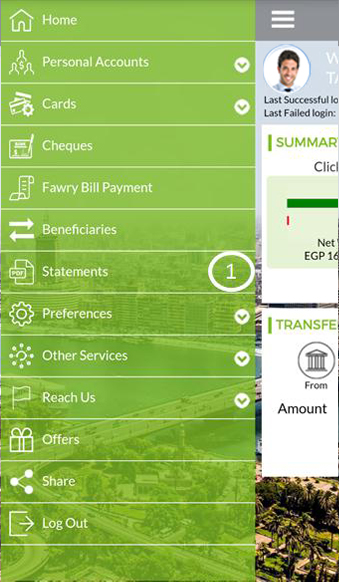
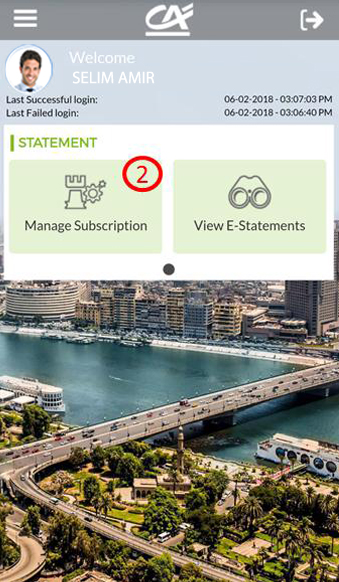
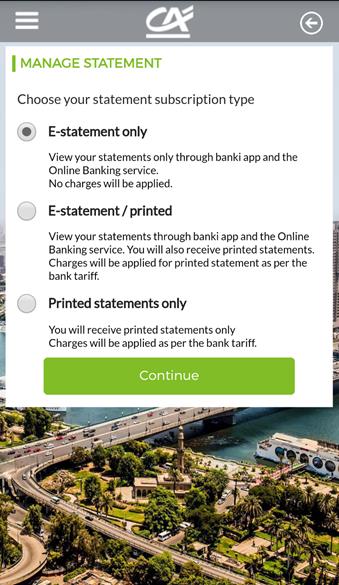
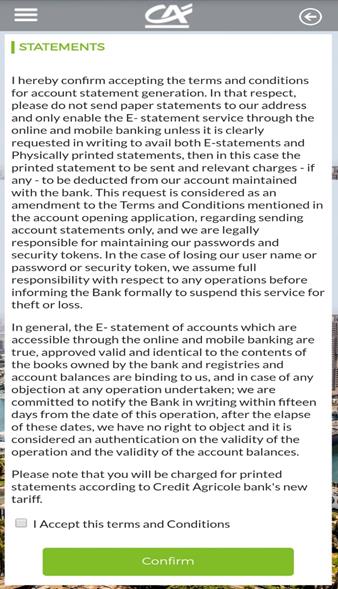
- Choose Statement > Manage Subscription and the available options will be displayed: E-statement only, E-Statement/Printed or Printed Statement only. After chosen the suitable mode, please accept the terms and conditions to apply the requested service.
-
- Please note that you will be charged for printed statements in case chosen.

- Last 12 months
- This Transfer is free till further notice
- To activate your token click here:
- Steps to transfer to other cards in other banks inside Egypt:
- Choose “Transfers/Payments”.
- Then choose “banks inside Egypt”.
- Click “from” and choose your account number.
- Then click “to” and choose “banks inside Egypt”.
- Then fill in all the required fields & add the card number in the account number field.
- Then add the amount.
- Press “continue” & choose transfer/payment reason.
- Enter the “TOKEN” & press “confirm”.
- To know more, click here.
-
- Choose Preferences > Settings >change Security Q & A to change them
-
- Choose a new security questions and answers> enter your token authorization code for verification> click continue
- Steps to change your billing profile/ language / billing account: click here
- Yes guests are allowed provided they are accompanying the cardholder on the same flight.
- Each guest will be charged by $32 per visit (to be paid at the lounge)
Present your membership QR code to the lounge staff
No minimum spend required
6 free access throughout the calendar year then every extra visit will be charged by $32 (it will be debited from the registered credit card)
Mutual funds and Certificates of Deposit (CDs) are two distinct investment options that differ in several key aspects, including structure, risk, returns, diversification and liquidity. below is a comparison:
- Investment Type
- Mutual Funds: Mutual funds pool money from multiple investors to invest in a diversified portfolio of stocks treasury bonds or other securities. The value of your investment fluctuates based on the performance of the underlying assets.
- CDs: A CD is a fixed-term deposit offered by banks and credit unions. You deposit money for a set period (e.g.” 1 year 3 years etc.) and the bank pays you a fixed interest rate over that term. The principal is guaranteed and the interest is usually fixed.
- Return and Risk
- Mutual Funds: These carry market risk because the value of the underlying securities can rise and fall. As a result” returns are variable and depend on the performance of the assets within the fund. Equity mutual funds tend to have higher potential returns but with greater risk whereas bond funds offer more stable albeit lower returns.
- CDs: Generally considered low risk because your principal and interest are guaranteed by the issuing bank. However CDs face interest rate risk– if interest rates rise during the CD term your fixed rate become less attractive. The return is fixed and predictable but it is typically lower than the potential mutual fund earnings especially in a low-interest-rate environment.
- Liquidity
- Mutual Funds: Generally liquid allowing investors to buy or sell shares daily. Some funds may offer weekly liquidity for entry and exit.
- CDs: Funds are locked in until the maturity date. Early withdrawals may result in penalties such as losing some of the accrued interest and withdrawals are usually not allowed within the first six months.
- Diversification
- Mutual Funds: Provide built-in diversification since the fund invests in a variety of securities helping to spread risk across multiple assets.
- CDs: offer no diversification as the investment is concentrated in a single fixed-income product.
Mutual funds are investment vehicles that pool money from multiple investors to invest in a diversified portfolio of capital market instruments, including equities listed on the stock exchange, treasury bills, treasury bonds, or other securities.
EFG Hermes Asset Management is the fund manager for Credit Agricole I, Credit Agricole II equity funds and Credit Agricole III money market fund. With over 25 years of experience in the Egyptian market, the fund manager makes investment decisions on behalf of the investors based on through research and close monitoring of market conditions. EFG Hermes Asset Management is responsible for the performance of the funds under its management, as they handle the investment part of the fund
Returns represent the total net profits or losses (in some types of mutual funds) achieved against the invested amount during a specific period.
To view the returns for the mutual funds offered by the bank
- Mutual fund 1 click here
- Mutual Fund 2 click here
- Mutual fund 3 click here
- Mutual Fund 4 click here
The main types of mutual funds include:
- Equity Funds (Stock Market)
- Fixed Income Funds (Medium/Long term Debt Funds)
- Money Market Funds (Short term Debt Funds)
- Balanced Funds (Hybrid Funds)
- Precious Metals Funds (Gold/Silver Funds)
- You can now check your Happy points balance and redeem them using banki Mobile in a few seconds.
- View steps click here.
- Now you can change your registered mobile number with no need to visit the branch.
- To change your mobile number instantly click here
- We will send you all communication> and transaction notification on your new mobile number
- Login now to banki Mobile and activate “Taqsit” service through the following steps: click Here
- You can now submit an ATM dispute request using banki Mobile at any time from anywhere
in a few seconds and you will no longer need to visit the branch! - For the steps click here
- Now you can setup your Face ID. You’ll no longer need to enter your credentials with every login.
- To know how to setup your face ID on banki Mobile click here.
- Steps to register in banki Alert: click here
- Cheques issued by you and cheques submitted by you to the bank for clearing or collection
- Cheque transaction done on last 6 months
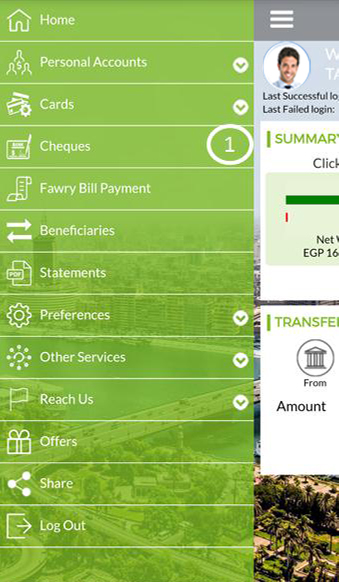
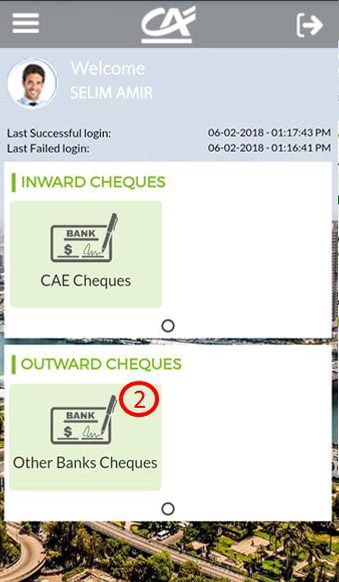
- Yes, after login, choose cheques> choose account and enter the cheque number if available> click search> click on the cheque number, a details screen will be opened
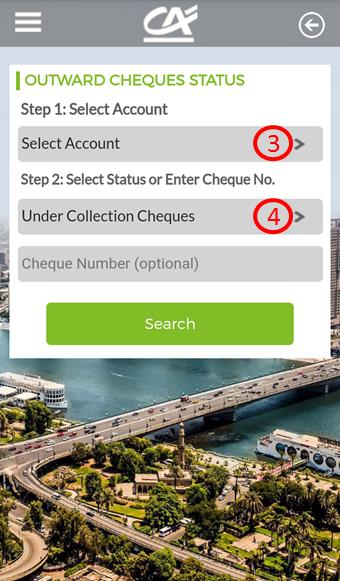
- Yes, please login to banki Mobile > cheques> outward cheques> choose the account> choose the status of “cheques under collection “>click search